If you are looking for a Windows 11 battery drain fix, this post explains 18 proven solutions to improve laptop battery life.
Many users face battery drain because of:
- Wrong settings
- Background processes
- Driver problems
- Windows update bugs
Here you will learn tested Windows 11 battery drain fixes that technicians actually use.
If your Windows 11 battery is draining fast, enable battery saver, reduce brightness, disable background apps, update drivers, and change power mode to Best Efficiency.
Table of Contents
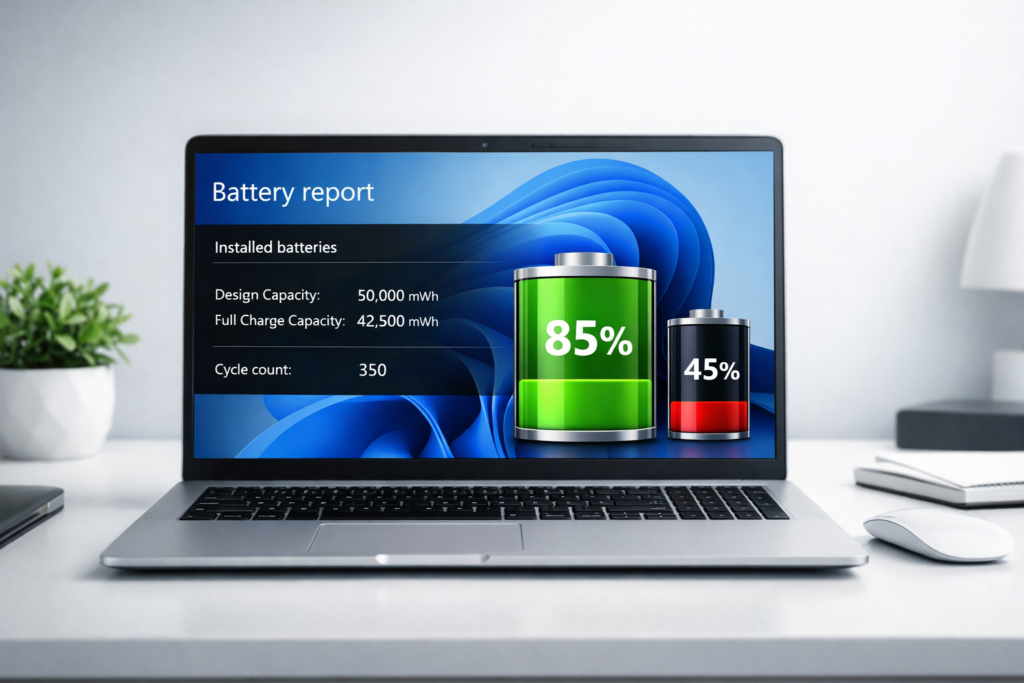
Before trying these fixes, it is also important to know your battery condition. You can check our complete post How to Check Laptop Battery Health Windows 11 (3 Easy Methods) – 2026 to learn simple ways to test battery health. Also, read How to Increase Laptop Battery Life (15 Working Methods) 2026 to discover practical tips that can help you get better backup from your laptop.
1. Check Which Apps Are Draining Battery (Most Important Step)
Before fixing, identify the problem.
Steps:
1 Open Settings
2 System
3 Power & Battery
4 Battery Usage
Here you will see:
- Apps using most battery
- Background consumption
- Screen usage
Remove apps consuming high battery.
2. Enable Battery Saver Automatically
Steps:
Settings → Power & Battery → Battery Saver
Set: Turn on automatically at 40%
This alone can increase battery backup significantly.
3. Change Refresh Rate (Hidden Trick)
Many laptops run 120Hz.
Change to: 60Hz
Steps:
Settings → Display → Advanced Display → Refresh Rate → 60Hz
This improves battery life.
4. Turn Off Transparency Effects
Windows animations consume GPU power.
Steps:
Settings → Personalization → Colors → Transparency Effects OFF
Small change but effective.
5. Use Dark Mode
Especially useful for OLED displays.
Steps: Settings → Personalization → Colors → Dark
Benefits:
- Less power usage
- Less eye strain
6. Disable Background Sync Apps
Apps to disable:
- OneDrive sync
- Google Drive
- Dropbox
- Adobe Cloud
Sync drains battery constantly.
7. Optimize Browser Usage
Chrome drains battery heavily.
Better options:
- Microsoft Edge efficiency mode
- Firefox
Edge trick:
Settings → Efficiency Mode → ON
Improves battery.
8. Reduce Keyboard Lighting
Gaming laptops waste battery through RGB.
Turn off: Keyboard lighting software.
9. Fix Windows Update Battery Bug
Sometimes update causes drain.
Fix:
Settings → Troubleshoot → Other troubleshooters → Power → Run
Repairs power issues.
10. Disable Fast Startup
Sometimes causes background drain.
Steps: Control Panel → Power Options → Choose power button → Disable Fast Startup
Test battery again.
11. Run Power Troubleshooter
Steps:
Settings → Troubleshoot → Power → Run
Windows automatically fixes issues.
12. Calibrate Your Battery
Many users skip this.
Process: 1 Charge to 100% 2 Use till 10% 3 Charge again fully
Do once monthly.
13. Disable Unnecessary Windows Services
Advanced users only.
Press: Win + R
Type: services.msc
Disable unused services carefully.
14. Check CPU Usage
High CPU = battery drain.
Open Task Manager.
If CPU > 30% idle: Find process.
Possible causes:
- Windows indexing
- Antivirus scan
- Update service
15. Disable Tips and Suggestions
Windows constantly tracks usage.
Steps: Settings → System → Notifications → Disable Tips
16. Use Efficiency Mode in Task Manager
Windows 11 feature.
Steps: Task Manager → Process → Right click app → Efficiency mode
Reduces power.
17. Update BIOS (Advanced Fix)
Sometimes firmware causes drain.
Check manufacturer website.
Update carefully.
18. Replace Battery If Needed
Battery cycles matter.
Average lifespan: 300–500 cycles.
After: Capacity drops.
Real Battery Life Improvement Example
Typical improvement after fixes:
Before: 3–4 hours
After: 5–7 hours
Depends on laptop model.
Signs Your Battery Is Dying
Replace battery if:
Symptoms:
- Sudden shutdown
- Charging stuck
- Heating
- Swelling
- Fast drop percentage
Best Settings Combination (Recommended Setup)
Use this combo:
Power mode: Best efficiency
Brightness: 50%
Background apps: Disabled
Battery saver: ON
Refresh rate: 60Hz
This gives best results.
Windows 11 Battery Optimization Checklist
Quick checklist:
✔ Disable startup apps
✔ Lower brightness
✔ Use battery saver
✔ Update drivers
✔ Disable background apps
✔ Check battery health
✔ Use efficiency mode
Things That Secretly Drain Battery
Hidden causes:
Unknown factors:
- Too many Chrome tabs
- External mouse RGB
- Antivirus scans
- Widgets
- Weather apps
Pro Laptop Battery Maintenance Tips
Do:
Good habits:
- Keep charge 20–80%
- Avoid overheating
- Use original charger
- Clean vents
Avoid:
Bad habits:
- Gaming on battery
- Full discharge daily
- Cheap chargers
Windows 10 vs Windows 11 Battery
Windows 11 advantages:
- Efficiency mode
- Better background control
- Improved sleep
Disadvantages:
- Early bugs
- Higher RAM use
Now mostly optimized.
FAQ – Windows 11 Battery Drain Fix
How do I stop Windows 11 battery drain?
Disable background apps, enable battery saver, reduce brightness and update drivers.
Why Windows 11 battery draining fast after update?
Usually driver conflicts or update bugs.
Which browser uses less battery?
Microsoft Edge uses less than Chrome.
Can Windows 11 damage battery?
No. Settings affect usage, not damage.
How much battery health is normal?
Above 80% is good.If you also want to extend your battery backup, you should read our detailed guide on How to Increase Laptop Battery Life (15 Working Methods) 2026 where we explain practical ways to improve battery performance. Additionally, if you are unsure about your battery condition, check our step-by-step tutorial on How to Check Laptop Battery Health Windows 11 (3 Easy Methods) – 2026 to find your laptop battery health and capacity.
Conclusion
Windows 11 battery drain can usually be fixed without replacing battery. Most problems come from software settings.
Start with:
- Battery usage check
- Background apps removal
- Power mode change
- Driver update
Advanced users can try:
- Power reset
- BIOS update
- Service optimization
If battery health is low, replacement is best solution.