
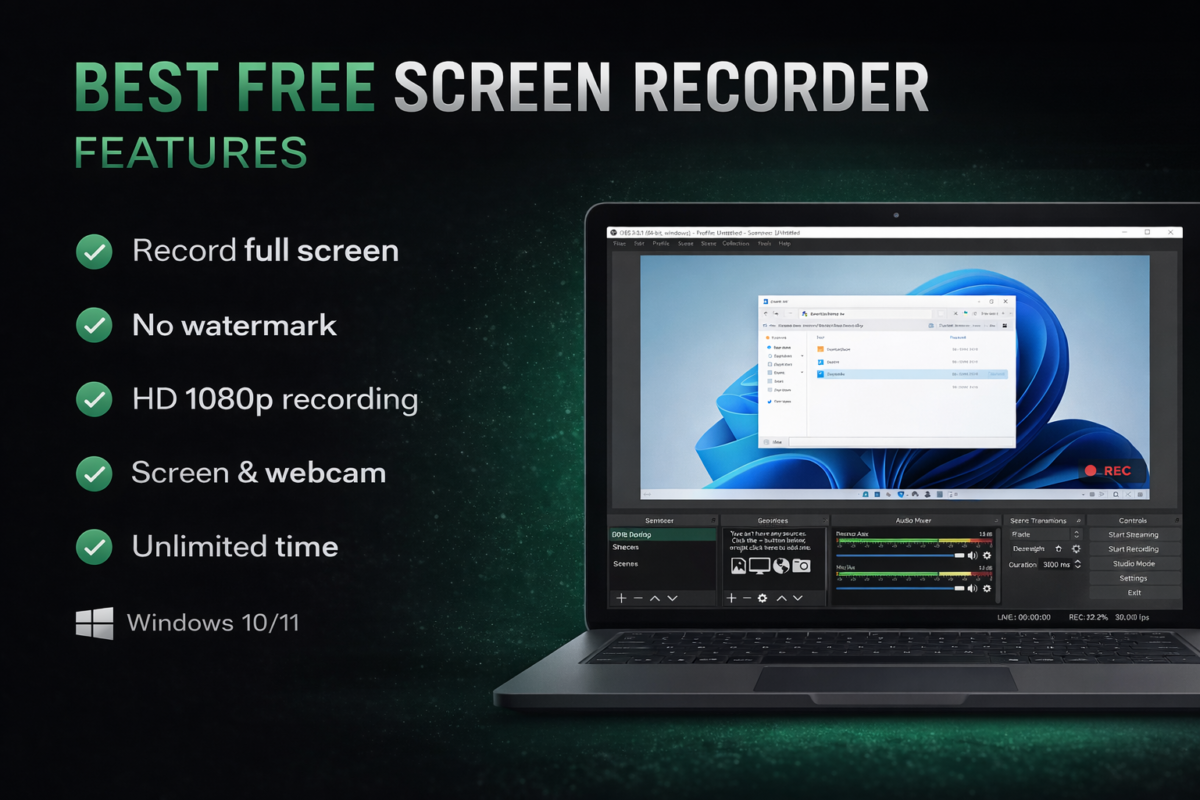
You Finding the best free screen recorder for PC without watermark is important for gamers, YouTubers, students, and online teachers. Many free screen recording software add watermarks or limit recording time, which makes them useless for professional work.
If you want a free screen recorder for Windows 10 or Windows 11 without watermark, this Post lists the best tested tools you can use right now.
In this article you will find:
• Completely free screen recorders
• No watermark software
• Tools for low end PC
• Recording software for YouTube
• Free download options
Let’s start with the best options.
If you are a student creating presentations or YouTube tutorials, you should also check these best free AI tools for college students to improve productivity.
Table of Contents
1 OBS Studio – Best Free Screen Recorder for PC Without Watermark
Best for: YouTube creators and gamers
Watermark: No
Platform: Windows, Mac, Linux
Price: Free
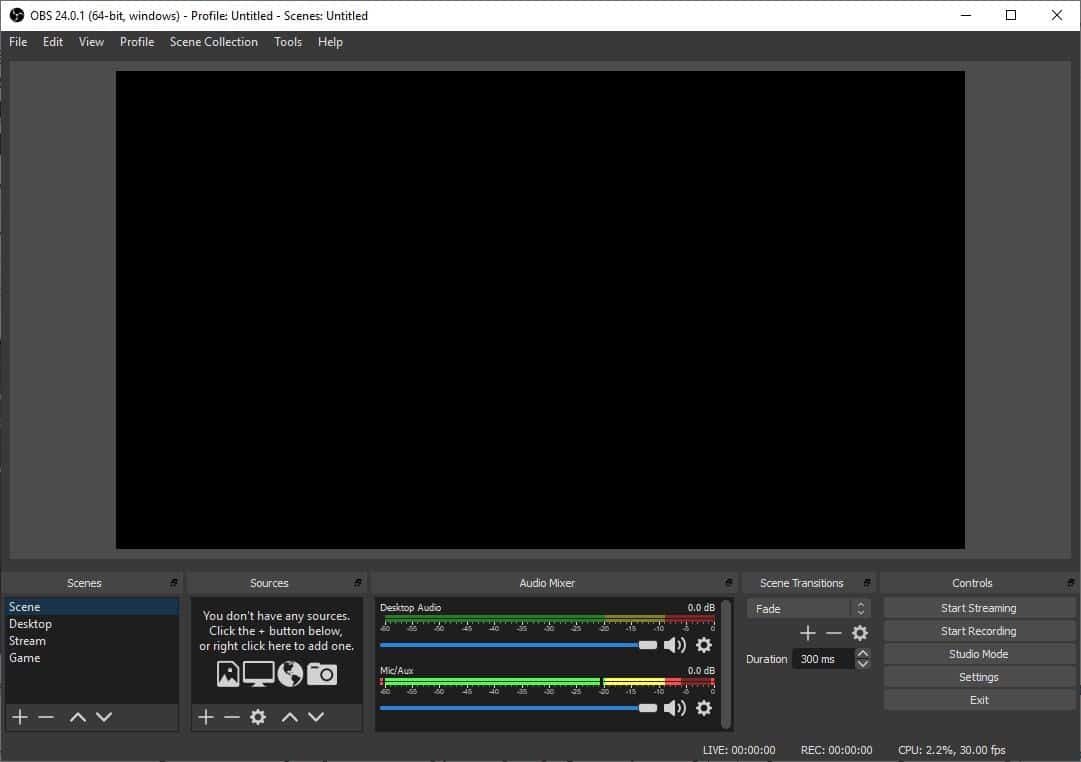
OBS Studio is the most powerful free screen recorder available. It is open source and used by professional streamers worldwide.
Features:
• HD screen recording
• Unlimited recording time
• Live streaming support
• Audio mixing
• Multiple scene recording
• No watermark
Pros:
• Completely free
• Professional quality recording
• No recording limit
• Lightweight performance
Cons:
• Beginner interface feels complex
• Needs initial setup
Best for:
Content creators and gamers who want professional recording quality.
Download OBS Studio Free Screen Recorder
Many bloggers use screen recorders along with these best AI tools for blogging to create high quality content faster.
2 ShareX – Free Screen Recorder Without Watermark for Windows
Best for: Low end PC users
Watermark: No
Platform: Windows
Price: Free
ShareX is a lightweight and fast screen recorder designed for productivity users.
Features:
• Screen capture
• GIF recording
• Workflow automation
• Quick upload tools
• No watermark
Pros:
• Very small size
• Fast recording
• Open source
• No ads
Cons:
• Not beginner friendly
• UI looks outdated
Best for:
Students and bloggers who want simple recording.
Download ShareX Free Screen Recorder
3 FlashBack Express – Best Simple Recorder
Best for: Beginners
Watermark: No
Platform: Windows
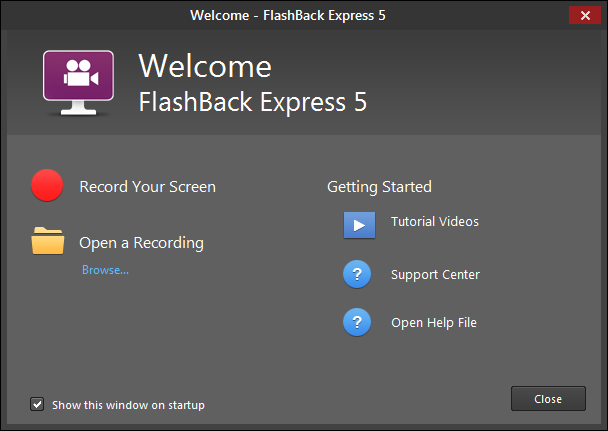
FlashBack Express provides simple screen recording without complicated settings.
Features:
• Webcam recording
• Audio recording
• Scheduled recording
• Export videos
Pros:
• Beginner friendly
• Clean interface
• No watermark
Cons:
• Some advanced features paid
Best for:
Online teachers and tutorial creators.
Download FlashBack Express Free
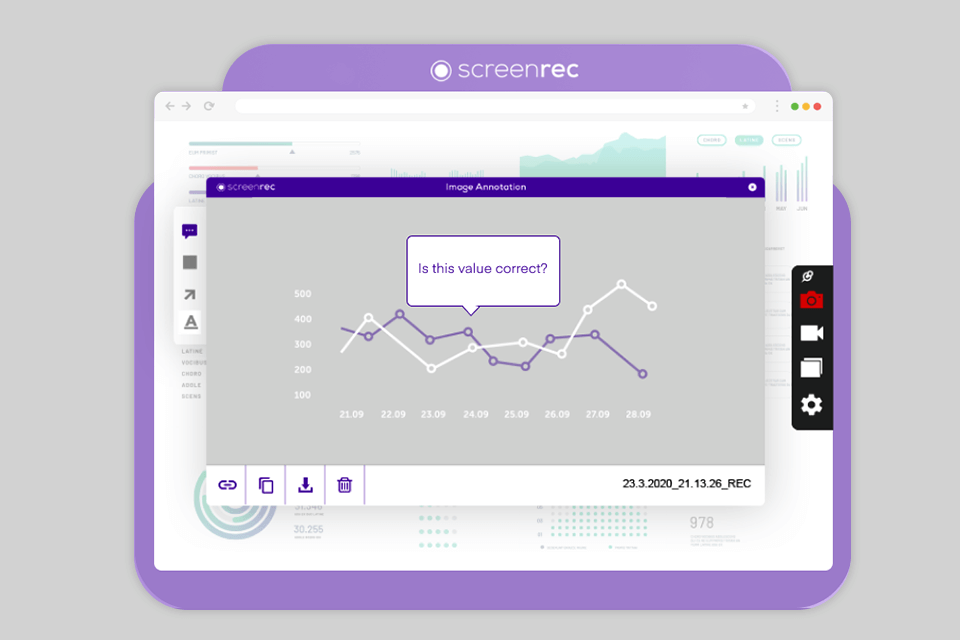
4 ScreenRec – Best Instant Screen Recorder
Best for: Quick recording
Watermark: No
Platform: Windows/Linux
ScreenRec focuses on instant recording and sharing.
Features:
• Instant recording
• Cloud sharing
• Screenshot capture
• Lightweight tool
Pros:
• Very fast recording
• Simple UI
• Free cloud storage
Cons:
• Limited editing tools
Best for:
Office users and quick tutorial recording.
Download ScreenRec Without Watermark
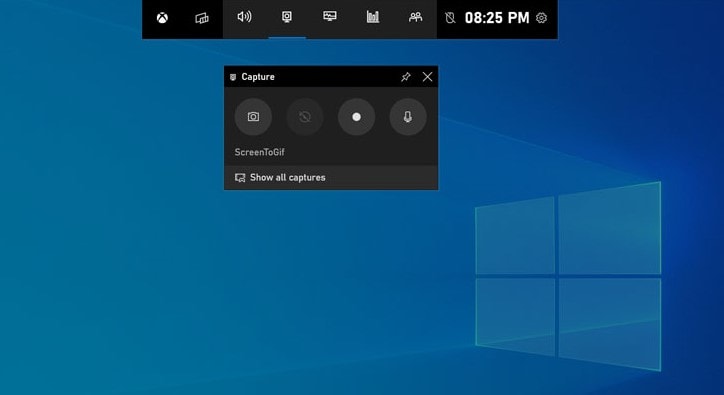
5 Xbox Game Bar – Built-in Windows Recorder
Best for: Windows users
Watermark: No
Platform: Windows 10/11
Xbox Game Bar is already installed in Windows.
Features:
• Built-in recorder
• Game recording
• Performance tracking
• Audio capture
Pros:
• No installation needed
• Easy recording
• Good for gameplay
Cons:
• Limited features
• Not full professional tool
Best for:
Casual users and gamers.
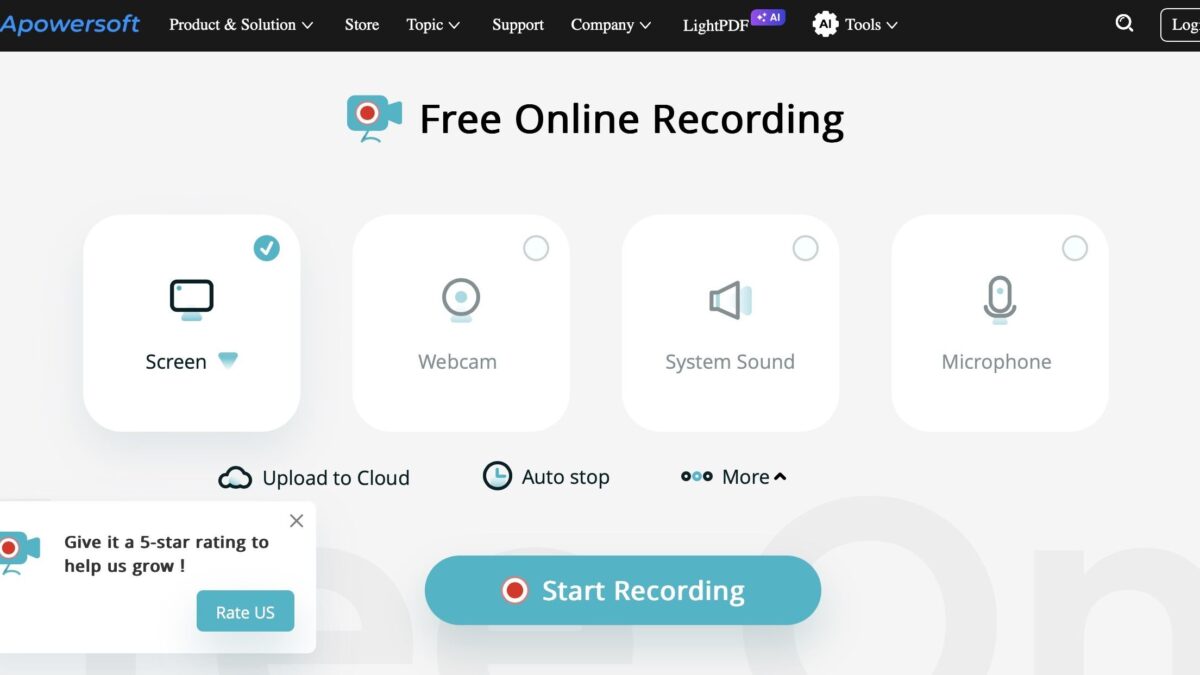
6 Apowersoft Free Screen Recorder
Best for: Browser recording
Watermark: No
Features:
• Online recording
• No installation
• Multiple formats
• Webcam recording
Pros:
• Easy to use
• No heavy software
Cons:
• Needs internet
Download Apowersoft Screen Recorder Free
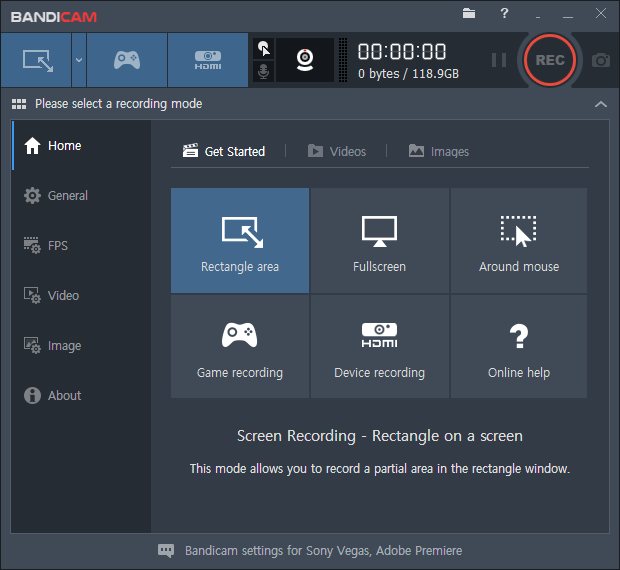
7 Bandicam Free Version
Best for: Gameplay recording
Features:
• High compression recording
• Game mode recording
• Hardware acceleration
Pros:
• Smooth recording
• High quality output
Cons:
• Free version limitations
Download Bandicam Free Version
Advantages of Free Screen Recorders
Free cost
Easy recording
Good for tutorials
Limitations
Basic editing
Limited support
Comparison Table
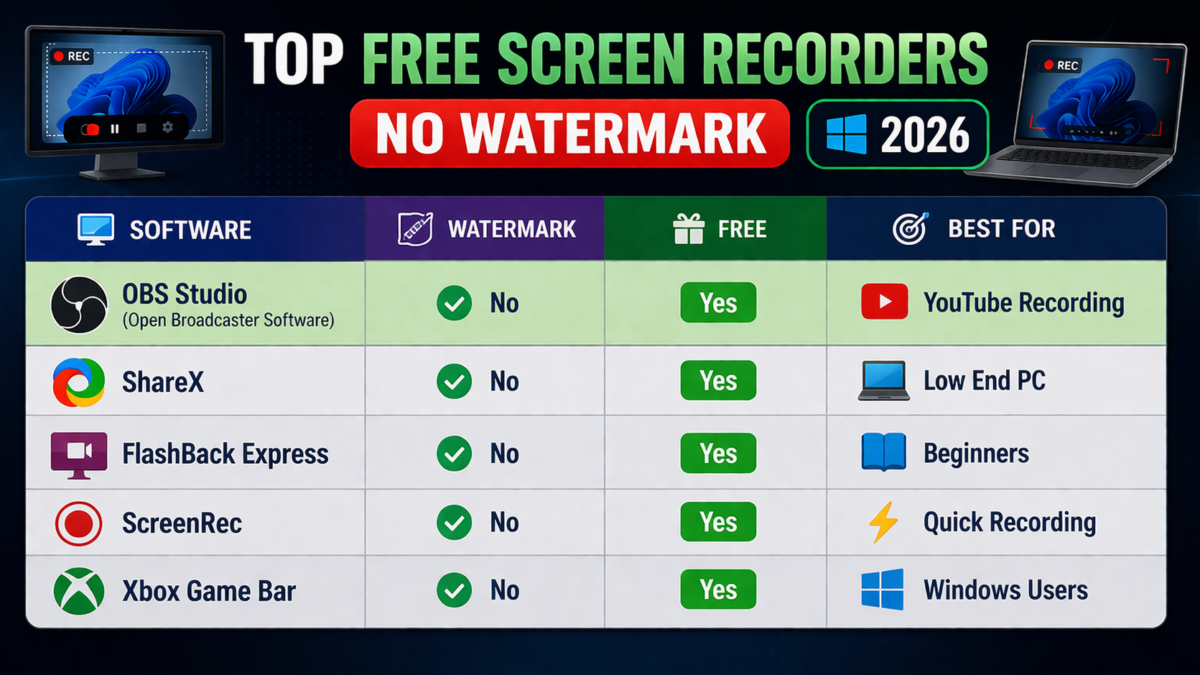
| Software | Watermark | Free | Best For |
|---|---|---|---|
| OBS Studio | No | Yes | YouTube |
| ShareX | No | Yes | Low PC |
| FlashBack | No | Yes | Beginners |
| ScreenRec | No | Yes | Quick recording |
| Xbox Game Bar | No | Yes | Windows users |
| Apowersoft | No | Yes | Online recording |
| Bandicam | Limited | Free version | Gaming |
How To Choose Best Free Screen Recorder
Before choosing software consider:
Recording quality
Choose at least 1080p support.
CPU usage
Low end PC users should choose ShareX.
Audio recording
Check microphone support.
Export formats
MP4 is best format.
Free vs Paid Screen Recorders
| Feature | Free | Paid |
|---|---|---|
| Watermark | Sometimes | No |
| Editing | Basic | Advanced |
| Export | Limited | Full |
| Support | Community | Official |
Free tools are enough for most users.
Minimum System Requirements
Before installing any screen recorder make sure your PC meets these requirements:
| Requirement | Minimum |
|---|---|
| RAM | 4GB |
| Processor | Intel i3 or equivalent |
| Storage | 500MB free space |
| OS | Windows 10 / Windows 11 |
| Graphics | Integrated GPU works |
If your PC is low end, choose lightweight tools like ShareX or ScreenRec.
Common Mistakes To Avoid
Avoid these mistakes:
Downloading cracked software
Using unknown websites
Ignoring CPU usage
Recording at very high bitrate
Which Screen Recorder Do YouTubers Use?
Most creators use:
OBS Studio
Camtasia
Bandicam
Nvidia ShadowPlay
OBS remains the most popular free option.
If you also write scripts for your videos, you can use these better AI tools than ChatGPT for writing to generate content ideas.
Best Screen Recorder For Low End PC
If you have low RAM:
Use: ShareX
ScreenRec
Xbox Game Bar
Avoid heavy tools.
How We Tested These Free Screen Recorders
To find the best free screen recorder for PC without watermark, we tested each software based on these important factors:
• Recording quality (720p / 1080p support)
• Watermark policy
• CPU and RAM usage
• Ease of use
• Export formats
• Audio recording quality
We installed each screen recording software on a Windows PC and checked real performance during recording. Tools that added watermarks or had heavy lag were not recommended.
This testing process helps ensure only reliable free screen recorders are listed.
Minimum System Requirements
Before installing any screen recorder make sure your PC meets these requirements:
| Requirement | Minimum |
|---|---|
| RAM | 4GB |
| Processor | Intel i3 or equivalent |
| Storage | 500MB free space |
| OS | Windows 10 / Windows 11 |
| Graphics | Integrated GPU works |
If your PC is low end, choose lightweight tools like ShareX or ScreenRec.
How to Record Screen on Windows 10 Using OBS
Write simple steps:
Step 1 Download OBS Studio
Step 2 Install software
Step 3 Click Start Recording
Step 4 Select screen
Step 5 Save video
Conclusion – Which Free Screen Recorder Should You Choose?
Choosing the best free screen recorder for PC without watermark depends on your needs. If you want professional recording choose OBS Studio. If you want lightweight software choose ShareX.
Quick recommendation for you:
Best overall → OBS Studio
Best lightweight → ShareX
Best beginner → FlashBack
Best built-in → Xbox Game Bar
These tools provide free recording without watermark and work well for most users.
If you want to improve your content creation workflow, you can also explore our guides on AI blogging tools and AI content writing tools.
FAQs About Best Free Screen Recorder Without Watermark
Which free screen recorder has no watermark?
OBS Studio and ShareX are completely free with no watermark.
Is OBS Studio safe?
Yes. It is open source and trusted by millions.
Which screen recorder is best for Windows 10?
OBS Studio is the best free option.
Can I record screen without software?
Yes using Xbox Game Bar in Windows.
Which recorder is best for YouTube?
OBS Studio because of quality and flexibility.

Sumit Pandey is the founder of GyanSaga
I research and write helpful articles on home appliances, gaming gear, and everyday products to help users make better buying decisions.
My recommendations are based on research, user reviews, and real-world use.
Some links may be affiliate links at no extra cost to you.Sumit is the founder of Gyansaga, a technology and AI tools blog focused on blogging, SEO, and digital productivity. He researches AI software, blogging tools, and content creation platforms to help creators grow traffic and improve workflows. His content focuses on practical comparisons, tool testing, and SEO strategies.Hi, I’m Sumit Pandey, founder of GyanSaga. I write detailed guides about AI tools, blogging, SEO, and digital productivity software. My goal is to help bloggers, students, and content creators find the best tools to improve their workflow and grow online. I test AI tools, blogging platforms, and content creation software to provide practical comparisons and research-based recommendations.