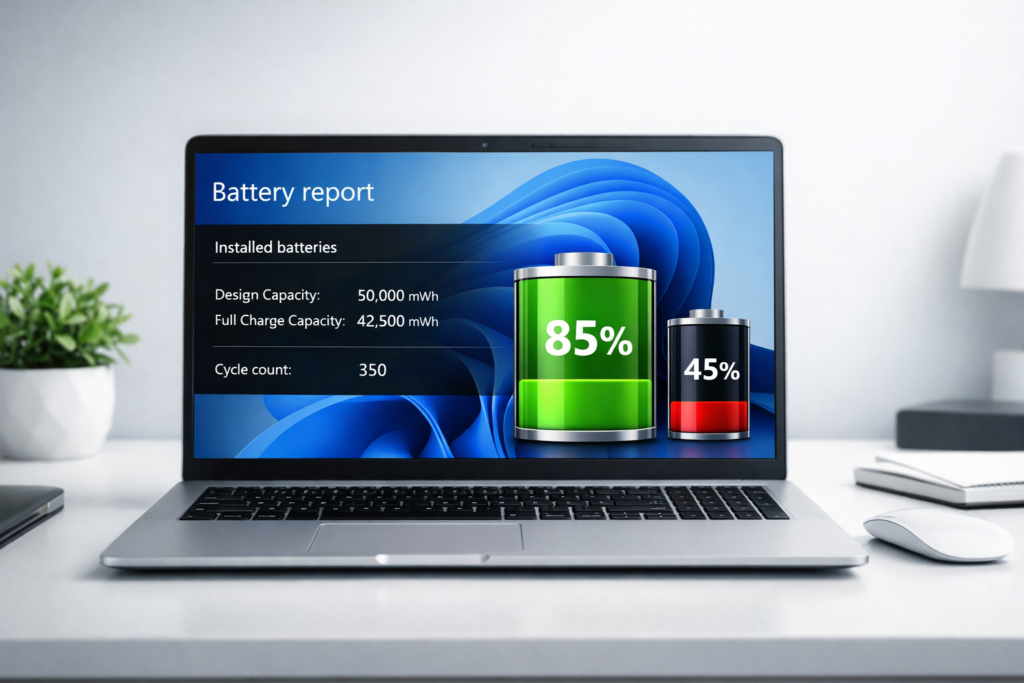
If you want to check laptop battery health Windows 11, this guide explains the easiest methods using CMD, PowerShell, and battery report tools.
Windows 11 includes a hidden battery report tool that shows detailed battery usage, capacity history, and wear level.
In this post you will learn:
- How to check battery health in Windows 11
- How to generate battery report
- How to read battery health data
- Tools to monitor battery condition
- Tips to increase battery lifespan
This guide helps beginners perform a complete check laptop battery health Windows 11 process without installing any software.
Let’s start.
According to Microsoft official documentation, Windows battery reports provide detailed battery performance data.
1. How to Check Laptop Battery Health in Windows 11 Using CMD (Best Method)
This is the most accurate method because it uses Windows’ built-in diagnostic report.
Steps to Check Laptop Battery Health Windows 11:
Step 1: Press Windows + S
Step 2: Search:
Command Prompt
Step 3: Click Run as Administrator
Step 4: Type this command:
powercfg /batteryreport
Step 5: Press Enter.
You will see:
Battery life report saved to:
C:\Users\YourName\battery-report.html
Step 6: Open File Explorer.
Step 7: Go to:
C:\Users\YourUsername
Step 8: Open:
battery-report.html
Now you can see full battery details.
2. How to Check Battery Health Percentage
Inside the battery report look for:
Design Capacity
Original battery capacity when new.
Example:
Design Capacity: 50,000 mWh
Full Charge Capacity
Current maximum charge capacity.
Example:
Full Charge Capacity: 41,000 mWh
Calculate Battery Health:
Formula:
(Full Charge Capacity ÷ Design Capacity) × 100
Example:
41000 ÷ 50000 × 100 = 82%
Battery health = 82%
Battery Health Status Guide:
| Battery Health | Condition |
|---|---|
| 90–100% | Excellent |
| 80–89% | Good |
| 70–79% | Average |
| 60–69% | Weak |
| Below 60% | Replace battery |
3. Check Battery Cycle Count
Battery cycle count shows how many times your battery completed full charge cycles.
Find:
Cycle Count section
Typical lifespan:
- 300–500 cycles → Budget laptops
- 500–800 cycles → Mid range
- 800–1500 cycles → Premium laptops
If cycles are high, battery degradation is normal.
4. Check Battery Health Using PowerShell
Alternative method:
Steps:
Press:
Windows + X
Open:
Windows Terminal (Admin)
Run:
powercfg /batteryreport
Same report will generate.
5. Best Free Battery Health Software
If you want simple percentage view, these tools help.
1. BatteryInfoView
Shows:
- Battery wear level
- Charge cycles
- Voltage
- Capacity
2. HWMonitor
Best for:
- Temperature
- Hardware monitoring
- Battery stats
3. BatteryCare
Good for:
- Cycle tracking
- Optimization tips
These tools help beginners understand battery condition easily.
6. Signs Your Laptop Battery is Dying
Common symptoms:
- Battery draining fast
- Laptop shuts down at 20–30%
- Battery stuck at certain percentage
- Charging very slow
- Laptop works only when plugged
If you see these signs battery health is likely below 70%.
7. How to Improve Laptop Battery Health
Follow these proven tips:
Avoid 0% battery
Keep battery between:
20% – 80%
Avoid overheating
Heat damages lithium batteries.
Tips:
- Use hard surface
- Clean vents
- Avoid gaming while charging
Use original charger
Cheap chargers damage battery cycles.
Enable battery saver
Go:
Settings → System → Power → Battery Saver
Reduce background apps
Go:
Settings → Apps → Startup
Disable unnecessary apps.
8. When Should You Replace Laptop Battery?
Replace if:
- Health below 60%
- Cycle count very high
- Battery swelling
- Backup under 1 hour
- Random shutdowns
Battery replacement improves performance significantly.
9. How Often Should You Check Battery Health?
Recommended:
- Normal users → Every 3 months
- Heavy users → Monthly
- Gamers → Monthly
This helps detect early degradation.
10. Common Mistakes That Damage Your Laptop Battery
Avoid:
- Keeping laptop always plugged
- Full discharge daily
- Using laptop on bed
- Using duplicate charger
- Ignoring overheating
These mistakes reduce battery life quickly.
FAQ – Laptop Battery Health Windows 11
Can I check laptop battery health Windows 11 without software?
Yes, you can check laptop battery health Windows 11 using the built-in battery report command powercfg /batteryreport.
How do I check battery health in Windows 11?
Use Command Prompt and run:
powercfg /batteryreport
Then open the generated HTML report.
Does Windows 11 show battery health percentage?
Not directly. You must calculate it using:
Full Charge Capacity vs Design Capacity.
What is good battery health?
Above 80% is considered good.
How many years does a laptop battery last?
Average lifespan:
2–5 years
Depends on usage and cycles.
Can battery health be restored?
No. Lithium battery degradation is permanent. Only replacement fixes it.
Conclusion
Checking battery health in Windows 11 is simple using the built-in battery report tool. By monitoring design capacity, full charge capacity, and cycle count, you can easily understand battery condition.
If battery health is above 80%, no action needed. If below 60%, consider replacement.
Regular monitoring and good charging habits can extend battery life significantly.