If your PC takes minutes to start, apps freeze, browser hangs, and gaming performance drops, then you are facing a common problem: Windows 10 slow performance issue. Over time temporary files, startup apps, background services, and disk clutter make systems sluggish.
This guide explains how to clean up computer to run faster Windows 10, why Windows becomes slow, and practical methods to speed up Windows 10 without installing risky software.
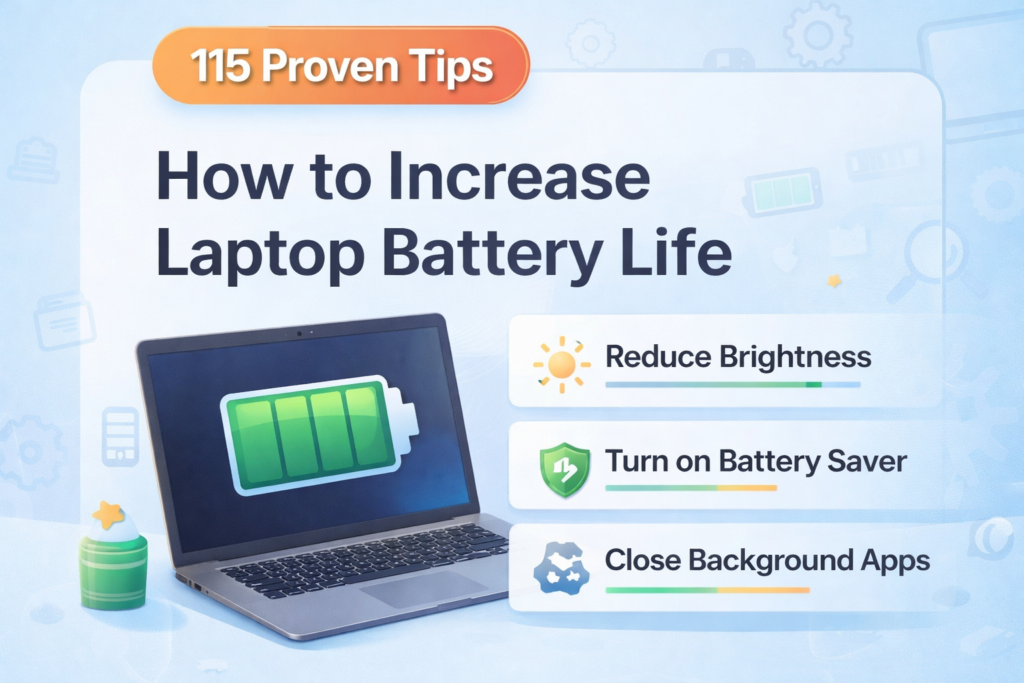
If you want better overall laptop performance along with faster system speed, you should also check our detailed guide on How to Increase Laptop Battery Life (15 Working Methods) 2026 where we explain practical settings that reduce background power usage and improve device efficiency. Many of these optimizations also help to speed up Windows 10 by reducing unnecessary processes.
Table of Contents
Why Windows 10 Becomes Slow Over Time
Before applying any Windows 10 slow fix, understand the main causes:
Common Reasons:
1. Too Many Startup Programs
Many apps automatically start with Windows and consume RAM and CPU.
Examples:
- Discord
- Steam
- Adobe updater
- OneDrive sync
- Third-party antivirus
2. Temporary Files and Junk Data
Windows constantly creates cache files, logs, update files, and temp storage.
These files:
- Occupy disk space
- Reduce SSD/HDD efficiency
- Slow indexing speed
3. Low Storage Space
If your C drive is almost full:
Windows struggles because it needs free space for:
- Virtual memory
- Updates
- Cache processing
Ideal free space: Minimum 25-30% free storage
4. Outdated Drivers
Old drivers cause:
- Lag
- Freezing
- Hardware inefficiency
5. Background Apps Running Continuously
Even when closed, many apps run background services.
Example:
- Chrome background processes
- Game launchers
- Update services
15 Proven Methods to Clean Up Computer and Speed Up Windows 10
Follow these steps in order for best results.
1. Disable Startup Programs (Biggest Windows 10 Slow Fix)
This alone can improve boot speed by 30-70%.
Steps:
1 Open Task Manager
2 Click Startup tab
3 Check Startup impact
4 Disable unnecessary apps
Disable:
- Skype
- Spotify
- Game launchers
- Updaters
Keep enabled:
- Graphics drivers
- Windows Security
2. Delete Temporary Files (Speed Boost)
Steps:
Press:
Windows + R
Type:
temp
Delete everything.
Repeat:
%temp%
Also:
prefetch
Delete files.
This removes junk slowing Windows performance.
3. Use Disk Cleanup Tool
Windows built-in cleaner works well.
Steps:
1 Open This PC
2 Right click C Drive
3 Properties
4 Disk Cleanup
5 Select:
Check:
- Temporary files
- Thumbnails
- Recycle bin
- Windows update cleanup
Click OK.
4. Uninstall Unused Software
Many unused programs slow Windows.
Remove:
Control Panel → Programs → Uninstall
Remove:
- Old games
- Trial software
- Duplicate apps
- Toolbars
5. Turn Off Background Apps
Steps:
Settings → Privacy → Background apps
Turn OFF unnecessary apps.
Improves:
- RAM usage
- CPU load
- Battery life
You can also read: Better: Windows 11 Battery Drain Fix (2026): 18 Proven Ways to Improve Laptop Battery Life Fast
Battery optimization also improves system performance.
6. Increase Virtual Memory
Virtual RAM helps slow systems.
Steps:
1 Search Advanced system settings
2 Performance Settings
3 Advanced
4 Virtual Memory
5 Change
Set:
Initial: 1.5 × RAM
Maximum: 3 × RAM
Example:
8GB RAM: Initial 12288
Maximum 24576
7. Disable Visual Effects
Windows animations consume resources.
Steps:
Search:
Adjust appearance and performance.
Select:
Adjust for best performance
Or disable:
- Animations
- Shadows
- Transparency
Result: Faster UI response.
8. Defragment Hard Drive (HDD Only)
Skip if SSD.
Steps:
Search:
Defragment and Optimize Drives
Click Optimize.
Improves file access speed.
9. Scan for Malware
Hidden malware causes slow Windows 10.
Use: Windows Security
Steps:
Virus & threat protection
Quick scan
Remove threats.
10. Update Windows
Many ignore updates.
Updates fix:
- Bugs
- Memory leaks
- Performance issues
Steps:
Settings → Update → Check updates.
11. Clean Browser Junk
Browsers slow PCs heavily.
Clean:
- Extensions
- Cache
- Cookies
Chrome:
Settings → Privacy → Clear browsing data.
Remove unused extensions.
12. Disable Search Indexing (Optional)
On slow PCs:
Search indexing can be heavy.
Steps:
Services → Windows Search
Set: Manual.
13. Turn Off Tips and Notifications
Steps:
Settings → System → Notifications.
Turn OFF:
Get tips and suggestions.
Reduces background processing.
14. Clean Desktop Icons
Too many icons slow explorer.
Keep desktop minimal.
Create folders.
15. Restart Regularly
Many never restart.
Restart clears:
- Memory leaks
- Cache
- Stuck processes
Restart weekly minimum.
Advanced Windows 10 Speed Up Methods (Pro Users)
Upgrade to SSD (Massive Performance Gain)
If using HDD:
Upgrade to SSD.
Speed increase: 5× to 20×
Boot: 40 sec → 10 sec.
Increase RAM
Minimum recommended:
8GB
Better:
16GB.
Reset Windows (Last Option)
If nothing works:
Reset PC.
Settings → Recovery → Reset.
Choose:
Keep files.
Why Windows 10 Slow Even After Cleanup
Possible reasons:
Hardware Bottleneck
Old CPU Low RAM HDD
Thermal Throttling
Dust causes overheating.
Clean fans yearly.
Too Many Chrome Tabs
Chrome eats RAM.
Use: Edge or Firefox.
Performance Maintenance Routine (Monthly)
Do monthly:
Delete temp
Disk cleanup
Update drivers
Remove apps
Malware scan
Keeps Windows optimized.
Common Mistakes That Make Windows 10 Slower
Avoid:
Installing PC Cleaner Apps
Most are useless.
Using Multiple Antivirus
Causes conflict.
Disabling Important Services
May break system.
Filling C Drive
Always keep space.
Bonus Optimization Tips
Use High Performance Mode
Control panel → Power.
Select:
High Performance.
If laptop user also read:
How to Increase Laptop Battery Life (15 Working Methods) 2026
Balanced optimization improves both speed and battery.
Also useful:
How to Check Laptop Battery Health Windows 11 (3 Easy Methods) – 2026
Battery health affects performance stability.
Signs Your Windows 10 Needs Cleanup
Symptoms:
Slow boot
App lag
Disk 100% usage
Freezing
Fan noise
Update failure
If you see these:
Apply fixes above.
Best Free Tools (Optional)
Safe tools:
Microsoft Autoruns
Malwarebytes free
CCleaner (basic only)
Optional use.
Windows 10 Speed Optimization Checklist
Do these:
Disable startup
Delete temp
Disk cleanup
Remove apps
Malware scan
Update Windows
Clean browser
Optimize storage
This covers 90% issues.
Conclusion
If your PC feels sluggish, applying these Windows 10 slow fix methods can dramatically improve performance. Most users see improvements simply by removing startup apps, deleting junk files, and freeing storage.
If you want maximum performance:
Combine: Cleanup + SSD + RAM upgrade.
That makes Windows feel new again.
Regular maintenance ensures your system stays optimized and responsive.
If your laptop performance is also affected by power issues and fast battery drain, you should also read our detailed guide on Better: Windows 11 Battery Drain Fix (2026): 18 Proven Ways to Improve Laptop Battery Life Fast where we explain practical optimization methods that improve both battery efficiency and overall system performance. Many of the settings discussed there also help in speed up Windows 10 and reducing background resource usage.
FAQ – Windows 10 Slow Fix
How do I make Windows 10 run faster?
Disable startup apps, delete temp files, free storage, update drivers, and reduce background apps.
Why is my Windows 10 very slow?
Main causes:
Low RAM
Full storage
Malware
Too many apps
Old hardware
Does Disk Cleanup improve speed?
Yes.
It removes junk improving disk performance.
Is Windows 10 slower than Windows 11?
Not necessarily.
Performance depends on hardware and optimization.
How often should I clean my PC?
Monthly cleanup recommended.