
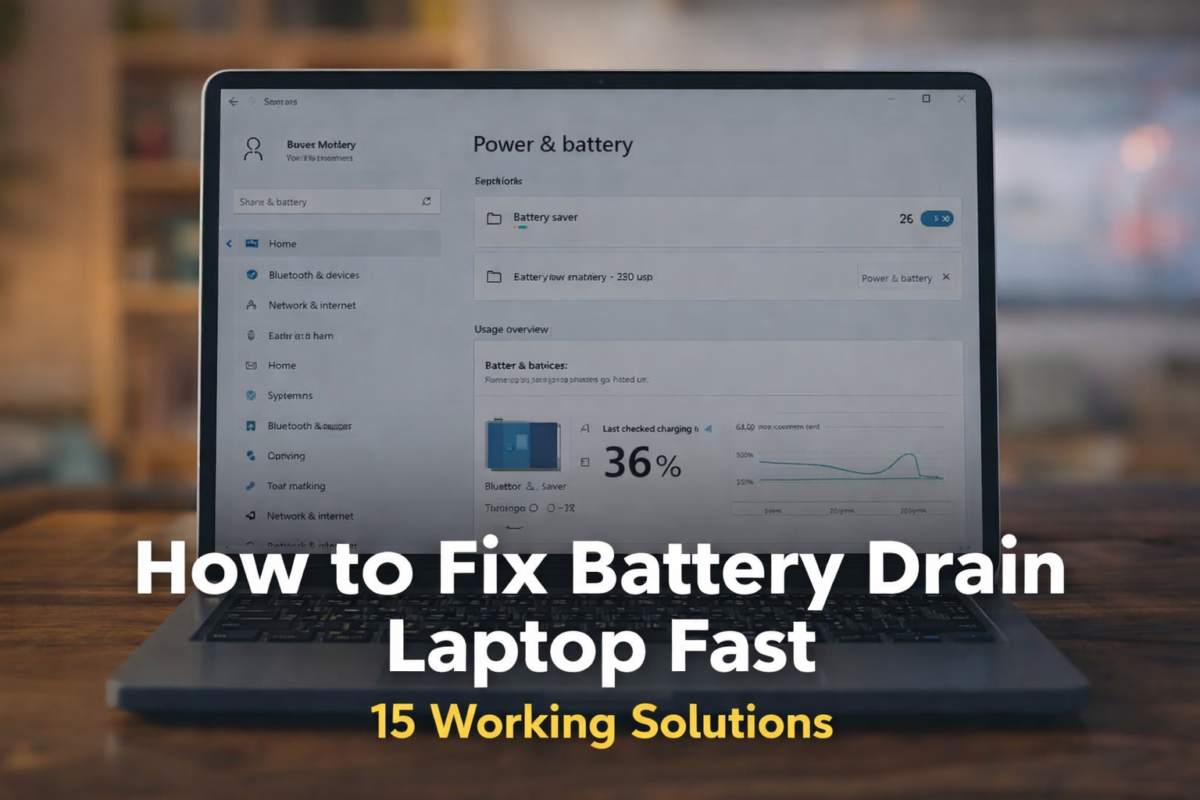
If you are searching how to fix battery drain laptop issues, this guide will help you with practical solutions.
Laptop battery draining fast is a common issue faced by students, gamers, and professionals. If your laptop battery percentage drops quickly even during normal use, it usually means there are system settings, background processes, or battery health issues causing excessive power consumption.
This Post explains how to fix battery drain laptop problems using practical and tested methods that can increase battery backup significantly.
Table of Contents
Why Your Laptop Battery Is Draining Fast
Before applying fixes, understanding the cause helps solve the problem faster.
Most common causes of battery drain
Main reasons include:
- Too many background applications
- High screen brightness
- Outdated drivers
- Poor battery health
- Windows updates running
- Overheating issues
- High CPU usage apps
- Gaming or heavy software
Quick insight: Most battery drain problems come from software issues not hardware failure.
Ifyou want to improve your productivity while using your laptop, you can also check these best free AI tools for students that help automate daily tasks.
Check Laptop Battery Usage Report (Important First Step)
Always start diagnosis before fixing.
How to check battery usage in Windows
Follow:
Settings → System → Power & Battery → Battery Usage
Check:
- Which apps consume most battery
- Background usage
- Screen usage time
What to look for
If you see:
- Browser using 40%
- Games using 30%
- Unknown apps using battery
Then those are your targets to fix.
How to Fix Battery Drain Laptop Fast (15 Proven Fixes Step-by-Step)
Apply these solutions one by one.
Fix 1 – Enable Battery Saver Mode
Battery saver reduces power consumption.
Steps:
Settings → System → Power → Battery Saver → Enable
What it does:
- Limits background activity
- Reduces sync
- Optimizes performance
Expected improvement: 15–25% better battery life
Fix 2 – Reduce Screen Brightness
Display is the biggest battery consumer.
Best brightness level:
Indoor: 50%
Outdoor: 70%
Avoid: 100% brightness constantly.
Extra tip:
Disable:
- Adaptive brightness
- HDR
Fix 3 – Close Background Apps
Too many apps silently drain battery.
How to check:
Press:
Ctrl + Shift + Esc
Open Task Manager.
Sort by:
CPU usage.
Close unnecessary processes.
Apps that usually drain battery:
- Chrome
- Steam
- Epic Games launcher
- Adobe services
- OneDrive sync
Fix 4 – Change Windows Power Mode
Wrong power mode causes drain.
Correct setting:
Settings → Power Mode
Select:
Best Power Efficiency
Avoid:
Best Performance.
Fix 5 – Disable Startup Programs
Startup apps keep running.
Steps:
Task Manager → Startup
Disable:
- Skype
- Teams
- Discord
- Game launchers
- Updaters
Result:
Better battery + faster boot.
Fix 6 – Update Drivers
Driver bugs cause battery drain.
Update:
Graphics driver
WiFi driver
Chipset
BIOS
Why important:
Bad drivers cause:
- CPU spikes
- Fan overuse
- Power mismanagement
Fix 7 – Check Battery Health Using Battery Report
Battery wear causes drain.
Generate report:
Open CMD.
Type:
powercfg /batteryreport
Open report.
Check:
Design capacity vs Full capacity.
Example:
Design: 50000 mWh
Full: 32000 mWh
Means battery degraded.
Fix 8 – Turn Off Keyboard Backlight
RGB lighting drains battery.
Turn off if unused.
Gaming laptops benefit most.
Saving: 5–12%
Fix 9 – Fix Overheating
Heat increases power draw.
Signs:
Hot keyboard
Loud fan
Thermal throttling
Solutions:
Clean vents
Use cooling pad
Avoid soft surfaces
Fix 10 – Turn Off WiFi and Bluetooth
Wireless radios consume power.
Turn off if unused.
Use:
Airplane mode.
Fix 11 – Reduce Browser Power Consumption
Browsers drain battery.
Do this:
Close extra tabs.
Enable:
Chrome Memory Saver.
Remove:
Unused extensions.
Fix 12 – Scan for Malware
Malware causes hidden CPU usage.
Use:
Windows Security scan.
Avoid:
Pirated software.
Fix 13 – Use Dark Mode
Dark mode reduces display power usage.
Enable:
Settings → Personalization → Colors → Dark.
OLED laptops benefit most.
Fix 14 – Battery Calibration
Fix wrong battery readings.
Method:
Charge to 100%
Use to 10%
Recharge fully.
Do monthly.
Fix 15 – Replace Old Battery
Sometimes replacement is the only fix.
Replace if:
Battery below 60% health
Random shutdown
Swollen battery
Charging drops fast
Typical lifespan: 3 years.
How Much Battery Drain Is Normal
Normal drain depends on usage.
Normal usage:
5–10% per hour.
Heavy usage:
15–25%.
Gaming:
30–50%.
If idle drain exceeds: 10% per hour → problem exists.
- Pro Tips to Increase Laptop Battery Life
- Follow these habits:
- Keep battery between 20–80%
- Avoid overheating
- Use original charger
- Avoid full discharge cycles
- Update Windows regularly
- Clean laptop every 6 months
Mistakes That Destroy Laptop Battery Life
Avoid:
- Using laptop while charging constantly
- Using performance mode always
- Keeping 50 browser tabs
- Blocking air vents
- Using cheap chargers
- Ignoring updates
Quick Fix Checklist
If battery draining fast do this:
- Reduce brightness
- Enable battery saver
- Close background apps
- Disable startup apps
- Update drivers
- Check battery health
- Turn off RGB lights
These solve 80% battery drain issues.
Many users also use AI tools for blogging to optimize their workflow and reduce system load.
Quick Battery Saving Checklist
- ✔ Enable battery saver
- ✔ Reduce brightness
- ✔ Close background apps
- ✔ Disable startup programs
- ✔ Update drivers
- ✔ Turn off WiFi when unused
FAQ
Why is my laptop battery draining fast even when not in use?
Possible causes:
Background apps
Windows updates
Malware
Battery wear
Check Task Manager.
How do I fix fast battery drain in Windows 11?
Best fixes:
Battery saver
Efficiency mode
Disable startup apps
Update drivers
Reduce brightness
Does overheating cause battery drain?
Yes.
Heat increases power consumption and reduces battery efficiency.
Cooling improves battery life.
Can I improve laptop battery health?
Yes:
Avoid full discharge.
Keep battery between:
20–80%.
Avoid heat.
How long should a laptop battery last?
Average:
4–8 hours normal use.
Gaming:
1–2 hours.
Battery lifespan:
2–4 years.
Conclusion
Laptop battery drain is usually caused by poor system optimization rather than hardware failure. By applying the fixes in this guide like reducing background apps, optimizing power settings, and checking battery health, you can significantly improve battery life.
Now you know exactly how to fix battery drain laptop issues and improve battery backup.
Start with:
Battery usage check
Power optimization
Background app control
These provide fastest results.
These methods show exactly how to fix battery drain laptop problems without replacing hardware.
This complete post explains how to fix battery drain laptop problems step by step for beginners.
You can also explore ChatGPT alternatives for writing if you want lightweight tools.

Sumit Pandey is the founder of GyanSaga
I research and write helpful articles on home appliances, gaming gear, and everyday products to help users make better buying decisions.
My recommendations are based on research, user reviews, and real-world use.
Some links may be affiliate links at no extra cost to you.Sumit is the founder of Gyansaga, a technology and AI tools blog focused on blogging, SEO, and digital productivity. He researches AI software, blogging tools, and content creation platforms to help creators grow traffic and improve workflows. His content focuses on practical comparisons, tool testing, and SEO strategies.Hi, I’m Sumit Pandey, founder of GyanSaga. I write detailed guides about AI tools, blogging, SEO, and digital productivity software. My goal is to help bloggers, students, and content creators find the best tools to improve their workflow and grow online. I test AI tools, blogging platforms, and content creation software to provide practical comparisons and research-based recommendations.