How to increase laptop battery life is a common question when your laptop battery starts draining fast. Laptop battery fast drain is a common problem in Windows 10 and Windows 11.
Whether you use Windows 10 or Windows 11, wrong settings, background apps, and battery health issues can reduce battery backup.
If your laptop earlier lasted 5–6 hours and now only 2–3 hours, the methods in this guide can help improve battery life.
Here are practical battery-saving tips that can show quick results. 🔋💻
You may also like: How to Check Laptop Battery Health Windows 11 (3 Easy Methods) – 2026
Table of Contents
1. Reduce Screen Brightness
The display consumes the most battery on a laptop.
If brightness is at 100%, the battery will drain faster.
What to do:
- Keep brightness between 50–70%
- For indoor use, 40–50% is ideal
- Disable auto brightness
Shortcut:
Press Fn + Brightness key
Battery saving impact: 10–25% improvement.
2. Turn On Battery Saver Mode
Windows has a built-in battery saver feature.
Steps:
- Open Settings
- Click System
- Click Power & Battery
- Enable Battery Saver
This limits background activity.
Benefits:
- Reduced notifications
- Background sync stopped
- Optimized CPU usage ⚙️
3. Close Background Apps
Many apps run in the background such as:
- Chrome
- OneDrive
- Teams
- Updaters
How to check:
Press Ctrl + Shift + Esc
Open Task Manager
Close apps with high CPU usage.
Impact:
5–20% battery improvement.
4. Change Power Mode Settings
Changing Windows power mode can increase battery backup.
Steps:
- Open Settings
- Go to Power & Battery
- Select Power Mode
Choose: Best Power Efficiency
Avoid: Best Performance (drains battery faster)
5. Disable Startup Programs
Startup programs affect both battery and performance.
Steps:
- Open Task Manager
- Go to the Startup tab
- Disable unnecessary apps
Examples:
- Skype auto start
- Discord
- Game launchers
6. Turn Off Bluetooth and WiFi When Not Needed
Wireless connections consume battery.
If not in use, turn off:
- Bluetooth
- WiFi 📶
Steps:
Click the network icon → Turn off.
7. Use Dark Mode
Dark mode can save battery on OLED and modern displays.
Enable:
Settings → Personalization → Colors → Dark Mode
Bonus:
Reduces eye strain 👀
8. Reduce Keyboard Backlight
Gaming laptops with RGB keyboards consume extra battery.
Solution:
Turn off keyboard lighting.
Shortcut:
Usually Fn + keyboard light key
9. Update Windows and Drivers
Outdated drivers can affect battery optimization.
Update:
- Windows updates
- Graphics drivers
- Battery drivers
Steps:
Device Manager → Batteries → Update drivers.
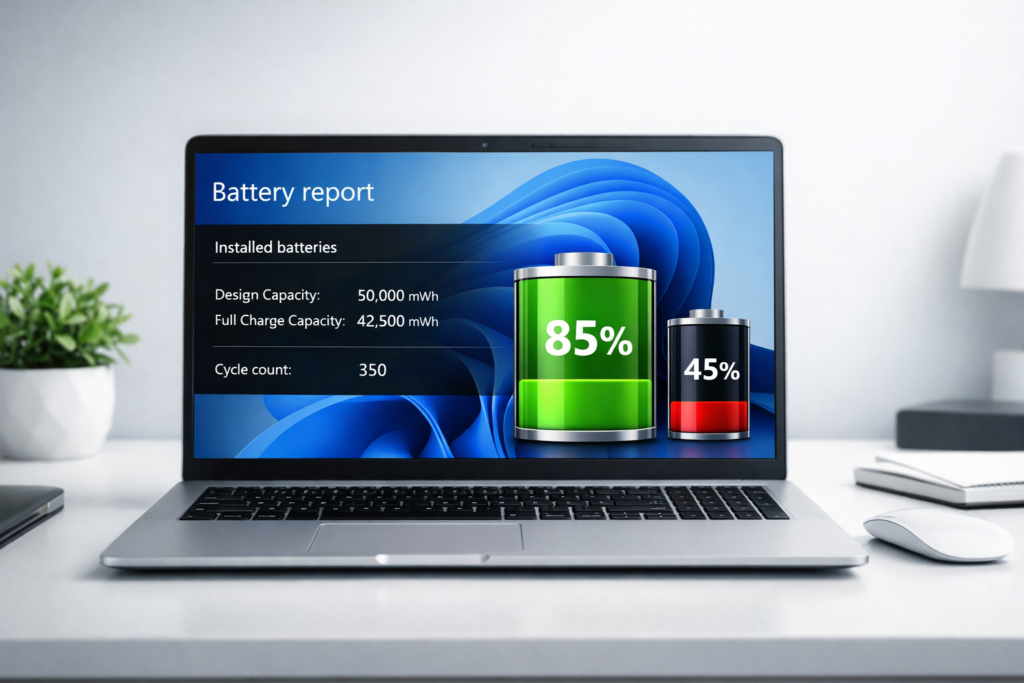
10. Check Battery Health Report
Windows provides a battery health report.
Command:
Open CMD and type:
powercfg /batteryreport
Report location:
C:\Users\YourName\battery-report.html
Check:
- Design capacity
- Full charge capacity
If the difference is large, the battery is degraded.
11. Avoid Overcharging
Keeping the laptop always plugged in can reduce battery lifespan.
Best practices:
- Don’t let battery drop below 20%
- Unplug at 80–90%
Ideal battery range:
20–80% 🔋
12. Disable Unused Hardware
Disable if not needed:
- Webcam
- External mouse receiver
- USB devices
Every connected device consumes power.
13. Use Efficient Browser Settings
Chrome uses more battery compared to some other browsers.
Tips:
- Close unused tabs
- Disable hardware acceleration
- Use battery saver extensions
Better browsers:
- Edge (battery optimized)
- Brave 🌐
14. Keep Laptop Cool
Heat reduces battery performance.
Use:
- Cooling pad
- Hard surface
- Clean fans
Avoid:
Using laptop on a bed.
15. Replace Old Battery (If Needed)
If battery health is below 50%, consider replacing it.
Signs:
- Fast draining
- Sudden shutdown
- Charging issues ⚠️
Common Mistakes That Drain Laptop Battery
Avoid:
- Always keeping charging plugged in
- High brightness
- 20 Chrome tabs open
- Gaming on battery
- Background downloads
Pro Battery Saving Tips
Advanced tips:
- Disable animations
- Use SSD instead of HDD
- Reduce refresh rate
- Disable Cortana
- Turn off location services
Conclusion
If you want to how to increase laptop battery life, these settings and optimization tips can help improve battery backup.
These are the most effective ways to how to increase laptop battery life in Windows laptops.
You can also read Microsoft official battery post.
Main methods:
- Control brightness
- Enable battery saver mode
- Control background apps
- Optimize power settings
If you follow these 15 methods, battery backup can improve significantly. 🚀
FAQ – How to increase laptop battery life in Windows 11?
How can I increase my laptop battery life quickly?
Reduce brightness, enable battery saver, and close background apps.
Why is my laptop battery draining fast?
Possible reasons:
- Background apps
- Old battery
- High brightness
- Performance mode
How many hours should a laptop battery last?
Normal usage: 4–8 hours
Gaming laptops: 2–4 hours
Does battery saver mode really help?
Yes. Battery saver reduces background processes.
How do I check laptop battery health?
Run this command in CMD:
powercfg /batteryreport